What Does the Button on the AirPods Case Do?
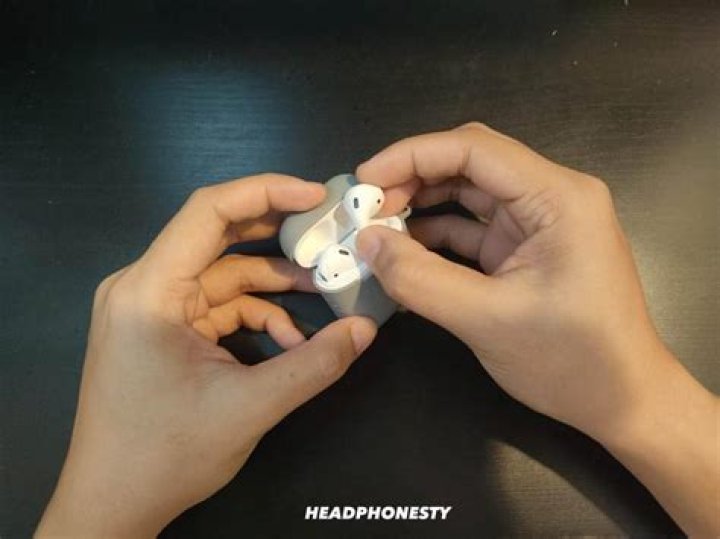
Apple AirPods are great wireless earphones. They’re well-built, intuitively designed, and super easy to understand and use. And, of course, they sound great whether you’re blasting tunes or making a call.
Table of Contents
Part of what makes these earphones so successful is their longevity. This is thanks to the handy case, which serves as a charging station and protective holder for the AirPods.
Like other Apple products…
The carrying/charging case design is sleek, understated, and simple but still very stylish. There’s only one button on this case. So, that means it’s got to be easy to operate, right? It is, but this is no mere on/off button.
The button on the back of your Apple Airpods charging case is called a setup button for a reason. Let’s find out what the setup button on an AirPods case does in this short guide.
What Does the Button on the AirPods Case Do?
There are two primary uses for the setup button on the back of the case. Oddly, neither of them relates to powering the device on or off. That is done by opening and closing the lid of the charging case.
The main function of the button on an AirPods case is to reset the case. This will restore it to its factory settings and allow you to start fresh with your paired list and sound settings. The second is to engage in manual pairing with non-Apple devices, such as Android devices and Windows PCs.
There are slight differences in how AirPods connect to these devices in terms of the source device’s sound settings. But, the setup button operation remains consistent through all the platforms.
Reset Your AirPods with the Setup Button
Remember that a reset will return the AirPods to the state they were in the day they shipped from the factory, apart from any firmware updates that are installed. However, this is also a great way to take care of various AirPod problems like connection issues and sound inconsistencies.
Before I take a look at the steps of resetting the device, it is important to note that you should have at least 50% in the device’s battery. If you have, here’s how to reset AirPods using the Setup button:
- Place the AirPods inside the charging case. Close the lid and wait for at least 30 seconds to ensure that the AirPods disconnect from any nearby devices.
- Open the Settings app on your Apple device and navigate to Bluetooth.
- Find your AirPods among the listed devices and tap on the “i” icon displayed to the right of the name.
- Tap on “Forget this device” and then tap on “Confirm.”
- With your device still close by, open the lid of the charging case. Then, hold the setup button for at least fifteen seconds. The light will flash from amber to white.
- Once the reset is complete, close the lid and wait about fifteen seconds.
- Re-open the lid and connect to your source device by bringing it within two feet of your AirPods. Then, confirm the connection via the pop-up that will appear on your screen.
Perform a Manual Connection Using the Setup Button
The quick pair function is one of the most appealing and talked about features of AirPods. It allows for a seamless and easy connection without the need for any manual setup on your end.
This feature, however, is limited to Apple devices. So, to pair your AirPods with non-iOS devices, you’ll need to change the process a bit. Additionally, you might use this when switching from one Apple device to another.
Here’s how to manually pair your Airpods using the charging case setup button:
- Start by making sure your source device’s Bluetooth connection is active. Depending on the phone, tablet, PC, or gaming console your using, this will be done in different ways.
- Open the lid of the AirPods charging case and hold down the setup button until it flashes white.
- Scan for Bluetooth devices on your source device. When the AirPods pop up, tap on them to engage the pairing.
AirPods Setup Button Not Working?
It’s now time to answer the question, “What does the button on the AirPods case do?” However, it can be quite a problem if the setup button stops working.
There are a few reasons why the setup button on an AirPods case doesn’t work. These can range from hardware problems to dirt and grime behind the button. So, let’s take a look at some fixes you can try to sort out this problem.
Clean the Airpods Case
If the AirPods case doesn’t get cleaned properly now and again, it can lead to small pieces of dirt, fiber, and grime building up behind the button. This will obscure the connector plates from making contact and thus render the button out of order.
One way to know for sure that you’re button is clogged is if you try to press it and it doesn’t go “click.” If that happens, here’s how to clean the case properly to get the button working again. You will need:
[bl]- 70% Isopropyl Alcohol.
- Cotton Swabs
- A Toothpick.
- A Toothbrush or a small soft-bristled brush.
Dampen the toothbrush in the alcohol and brush away any exterior debris that may be on the charging case. Use the toothpick to reach small crevices like the circular opening between the button and the case itself, but remember to be very gentle, don’t go poking around too much. Finally, use a lint-free cloth to wipe down the charging case.
Contact Apple Support
If you’ve come this far and the AirPods charging case setup button isn’t working, the only option that may be left is to contact Apple Support. You can do this by going to Apple’s website and using their troubleshooting guides.
However, I recommend that you use Apple’s mobile app for this instead. There’s a chat platform that gets you talking to the right people. And, with automatic location detection, you will get better service much faster.
Currently, there’s not much information or help available when it comes to the setup button not working correctly. But, you can forward a request to Apple, and someone will get back to you. Here’s how to go about it:
- Start by opening the Apple Support App.
- Select your Apple AirPods from the list.
- Tap on “More,” and then select “Tell us what’s happening.”
- Type in the problem like “Setup won’t work” or “Setup button not functioning.”
- You can follow the guidelines sent to you or have a technician from support contact you directly.
- One suggestion is likely to be that you should have your AirPods replaced. Check to see if they are still under warranty. If they are, then you should replace them as Apple recommends.
Need More Help With Your AirPods?
We’ve got you covered. Take a look at our handy articles on What To Do When AirPods Go Through the Wash, How to Make Your Airpods Louder, AirPods Connected But No Sound, AirPods Blinking Orange? How to Fix It, and Can Reset AirPods Be Tracked for more information and advice.
What Does the Button on the AirPods Case Do? – Final Thoughts
Having an AirPods charging case with a setup button that doesn’t function pretty much renders the AirPods useless. Luckily, the problem is usually something minor that can be fixed with a good clean or reset. And, before you know it, you’re up and running again.
Just make sure to take care of your case, and it will take care of you. And, if all else fails, there is always Apple support.
Until next time, happy listening.